How to assign an Operator Connect phone number to a Microsoft Teams user
This guide explains how to assign an Operator Connect phone number to a Microsoft Teams user. The entire process is completed in the Microsoft Teams admin center.
Before you begin
Make sure that:
- the phone number has been provided by the operator and is available in your organization,
- the user has the required Microsoft Teams and Teams Phone licenses,
- the phone number and the user's usage location are in the same country or region,
- you have the Teams Administrator, Teams Communications Administrator, or Teams Telephony Administrator role.
Assign the phone number
-
Open the Microsoft Teams admin center and sign in using an account with the required administrator role:
-
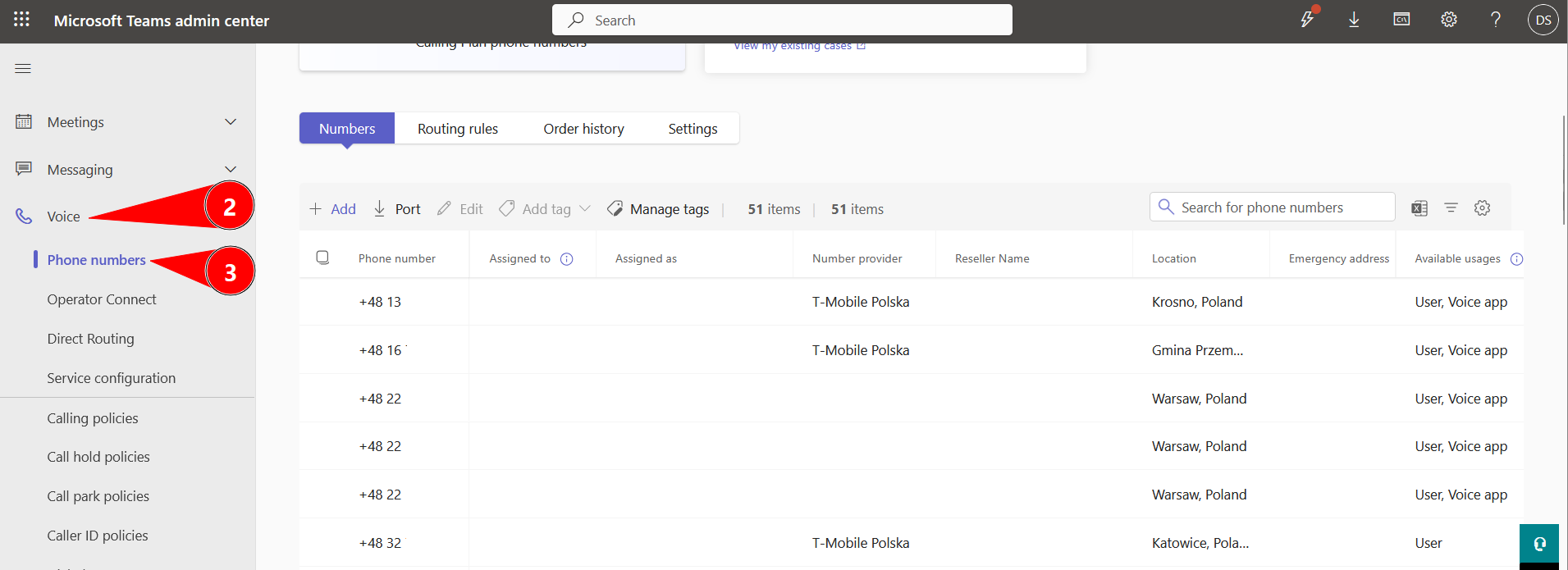
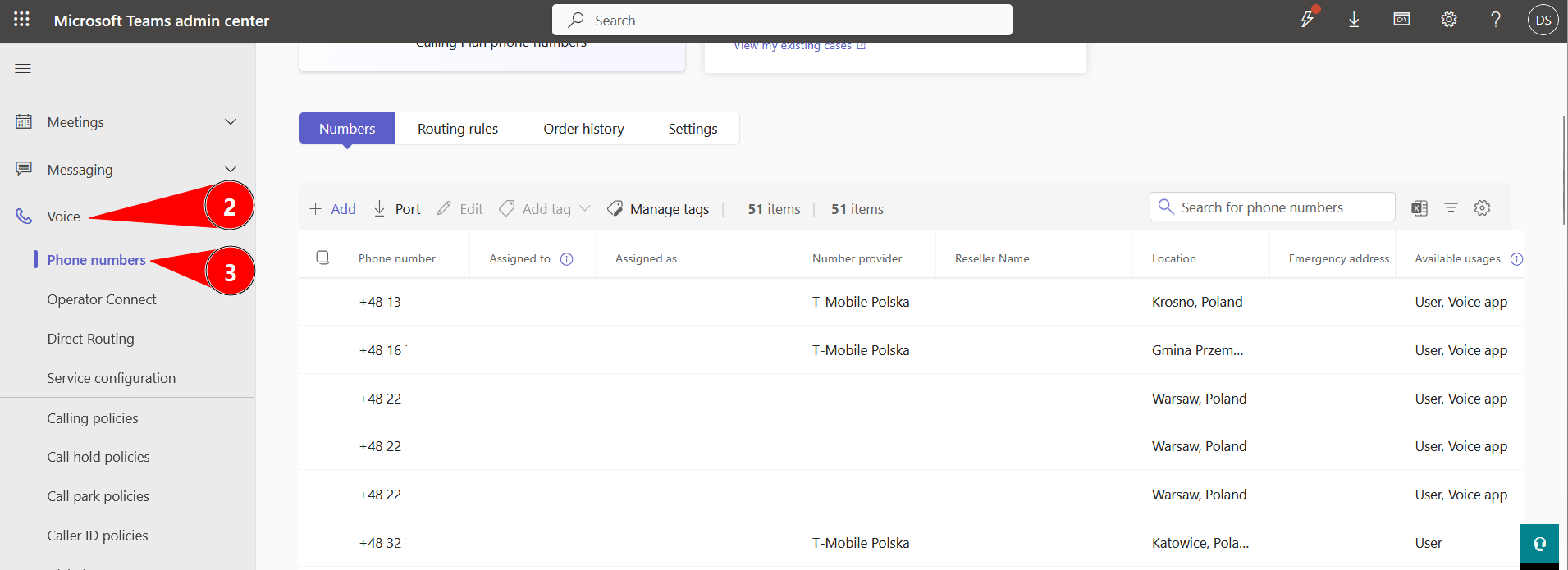
In the left-hand navigation menu, select Voice.
-
Select Phone numbers.
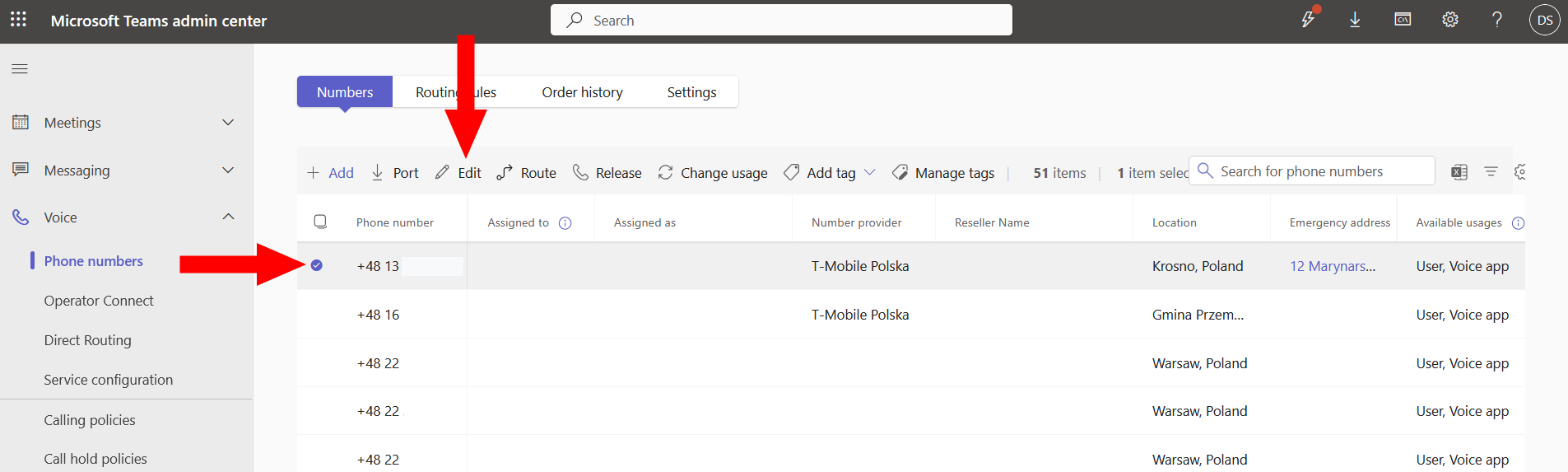
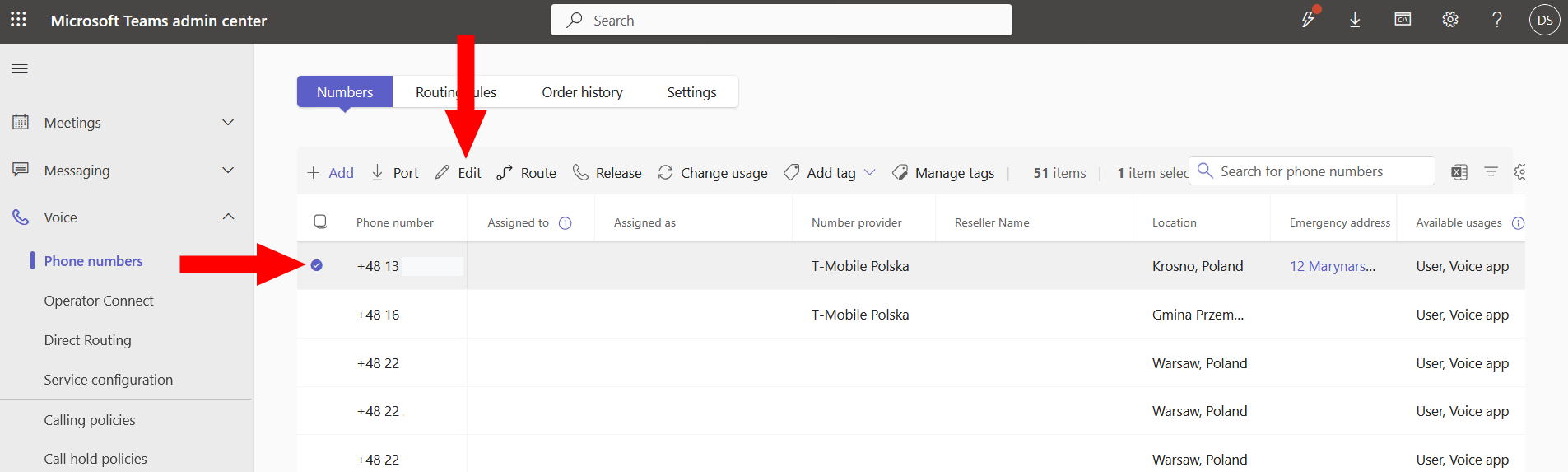
- On the Phone numbers page, select an unassigned phone number from the list, and then select Edit.
-
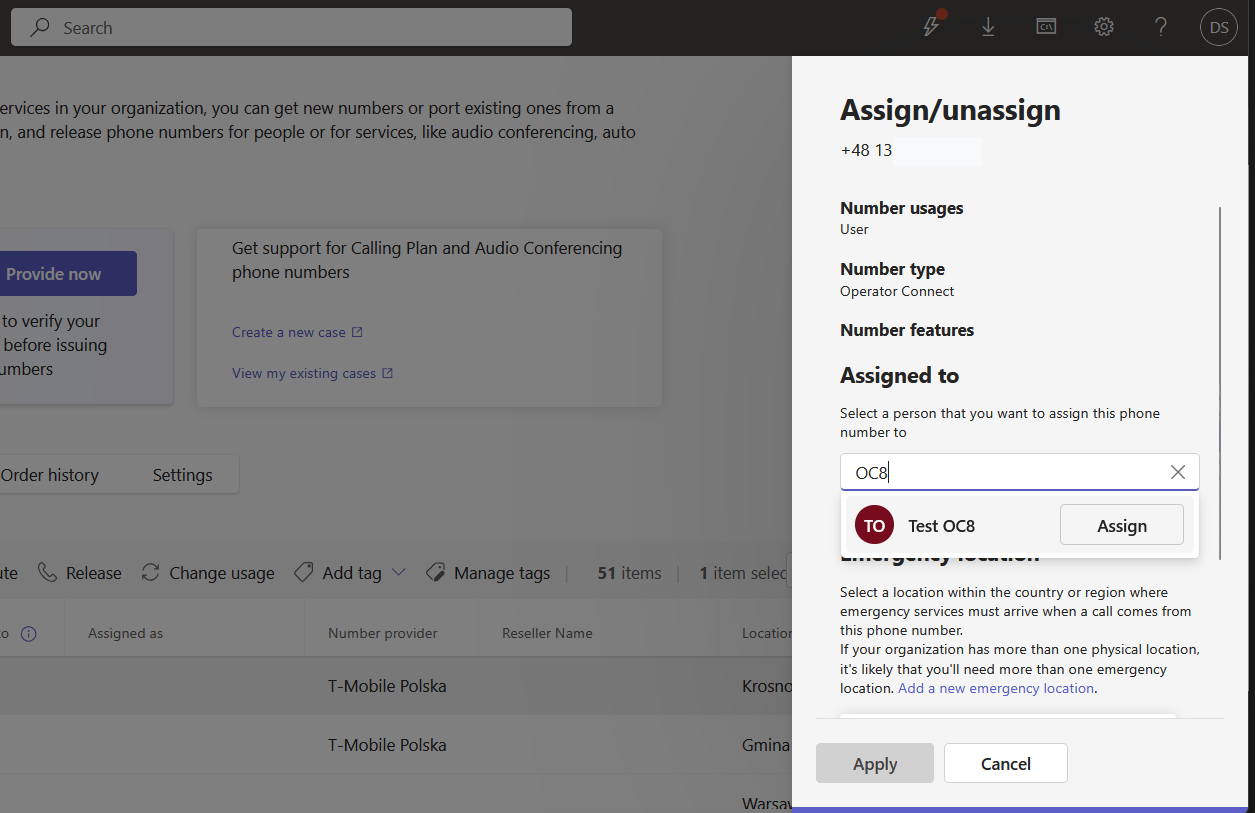
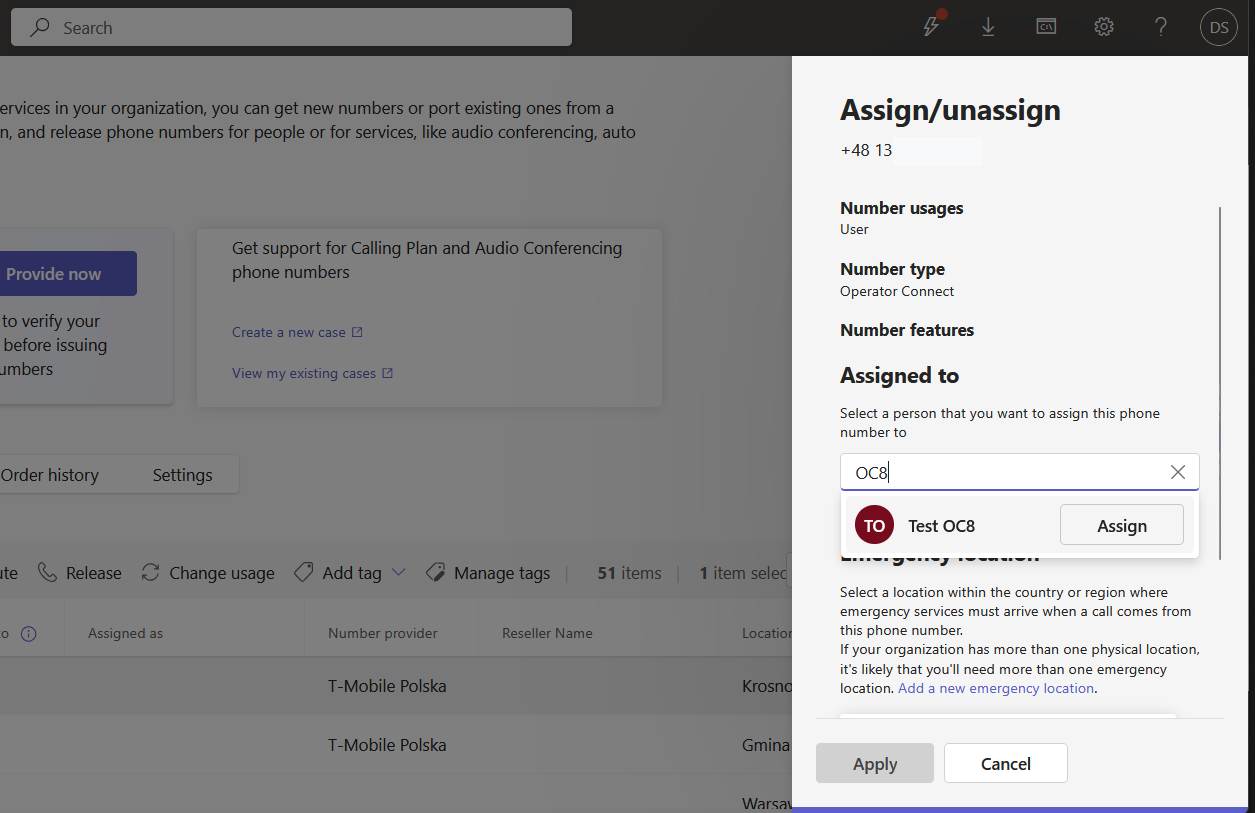
In the Edit pane, under Assigned to, search for the user by display name or username, and then select Assign.
-
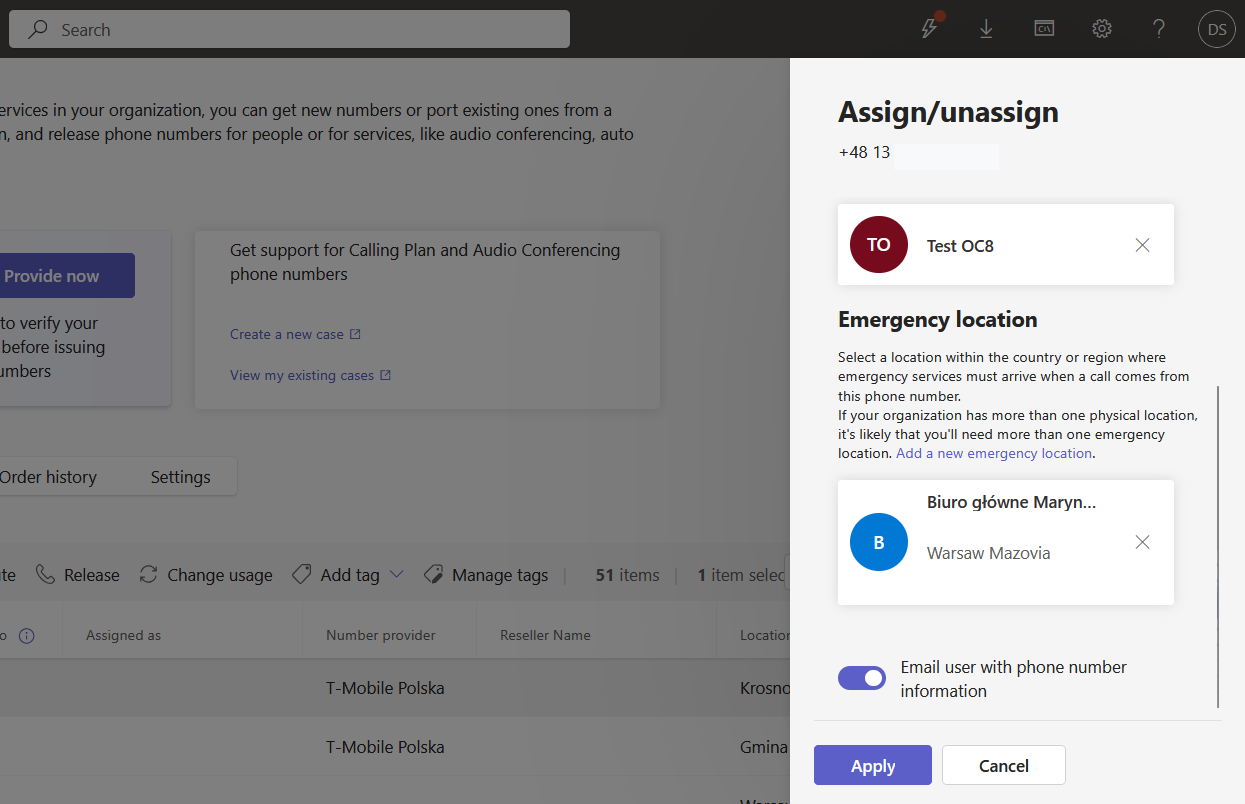
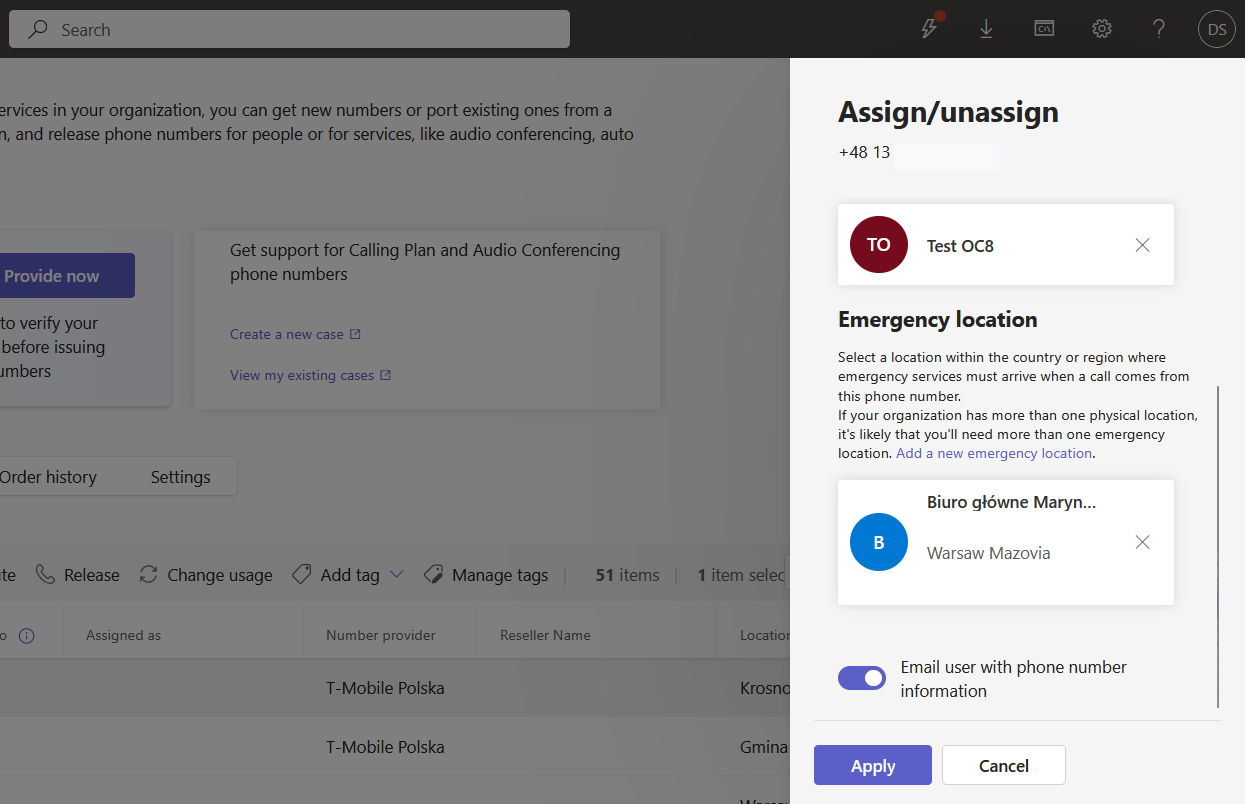
If the Emergency location option is available, search for and select the location associated with the phone number. For Operator Connect numbers, the option to assign or change an emergency location depends on the operator.
-
Use the Email user with telephone number information option to specify whether Microsoft Teams should send the user an email containing information about the assigned phone number. This option is enabled by default.
-
Select Apply.
The phone number is now assigned to the selected Microsoft Teams user. It may take some time for the change to become available across Microsoft 365 and Microsoft Teams.