Microsoft Teams Operator Connect
- Requirements for using voice services in Microsoft Teams
- How to order Microsoft Teams Operator Connect from T-Mobile
- How to find your Microsoft Entra tenant ID
- How to assign an Operator Connect phone number to a Microsoft Teams user
Requirements for using voice services in Microsoft Teams
To enable voice services in Microsoft Teams, your organization must meet the following requirements:
-
Each user who will make and receive telephone calls in Microsoft Teams must have:
- a qualifying Microsoft 365 or Office 365 license that includes Microsoft Teams,
- a Teams Phone license, such as Microsoft Teams Phone Standard.
-
Your organization must have access to the Microsoft 365 admin center. The person responsible for assigning and managing licenses must have the appropriate Microsoft 365 administrator role.
How to order Microsoft Teams Operator Connect from T-Mobile
This guide explains how to order the Microsoft Teams Operator Connect service from T-Mobile. You will learn how to submit the required form in the Microsoft Teams admin center, when a T-Mobile sales representative will contact you, and what happens after the order has been finalized.
Before you begin
Before ordering the service, make sure that your organization meets the following requirements:
- Users who will use the service have the required Microsoft Teams and Teams Phone licenses.
- The person completing the configuration has the appropriate administrator permissions to manage Teams Phone services.
If your organization does not yet use Microsoft Teams or does not have the required Microsoft Teams Phone Standard licenses, visit Microsoft 365 for business – T-Mobile Business Poland or contact your T-Mobile account manager.
Submit the request in the Microsoft Teams admin center
To start the ordering process, enable T-Mobile Polska as your Operator Connect provider in the Microsoft Teams admin center.
-
Sign in to the Microsoft Teams admin center using an account with the required administrator permissions:
-
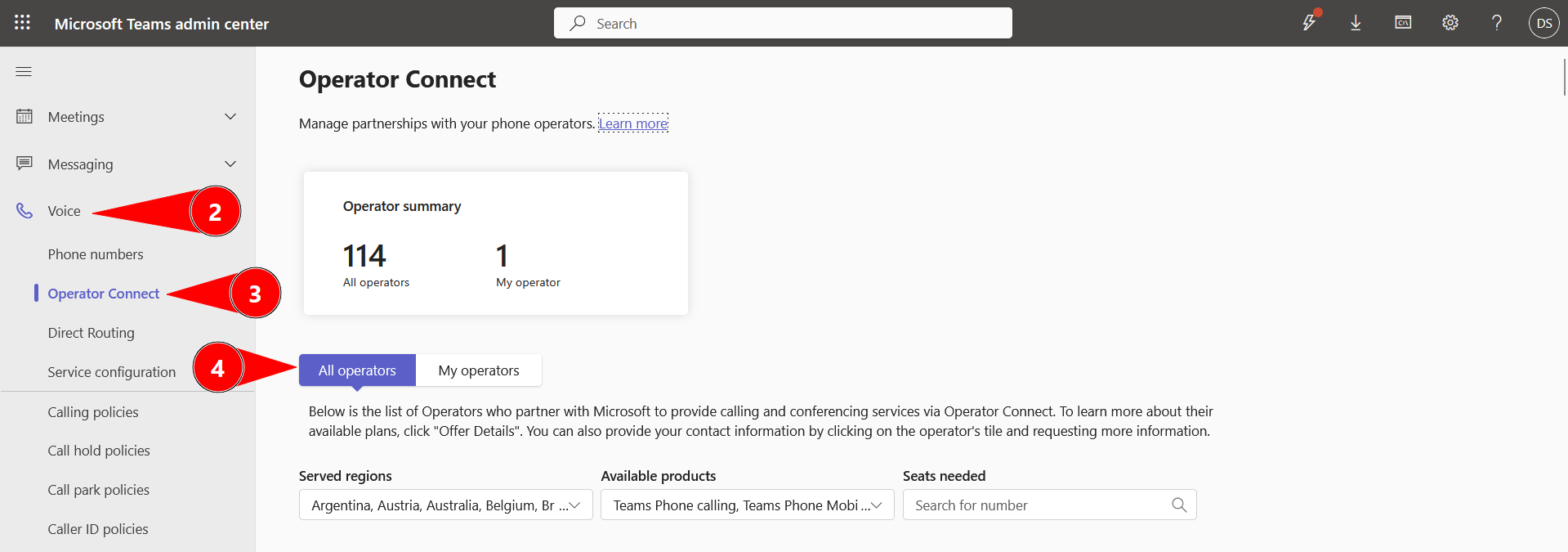
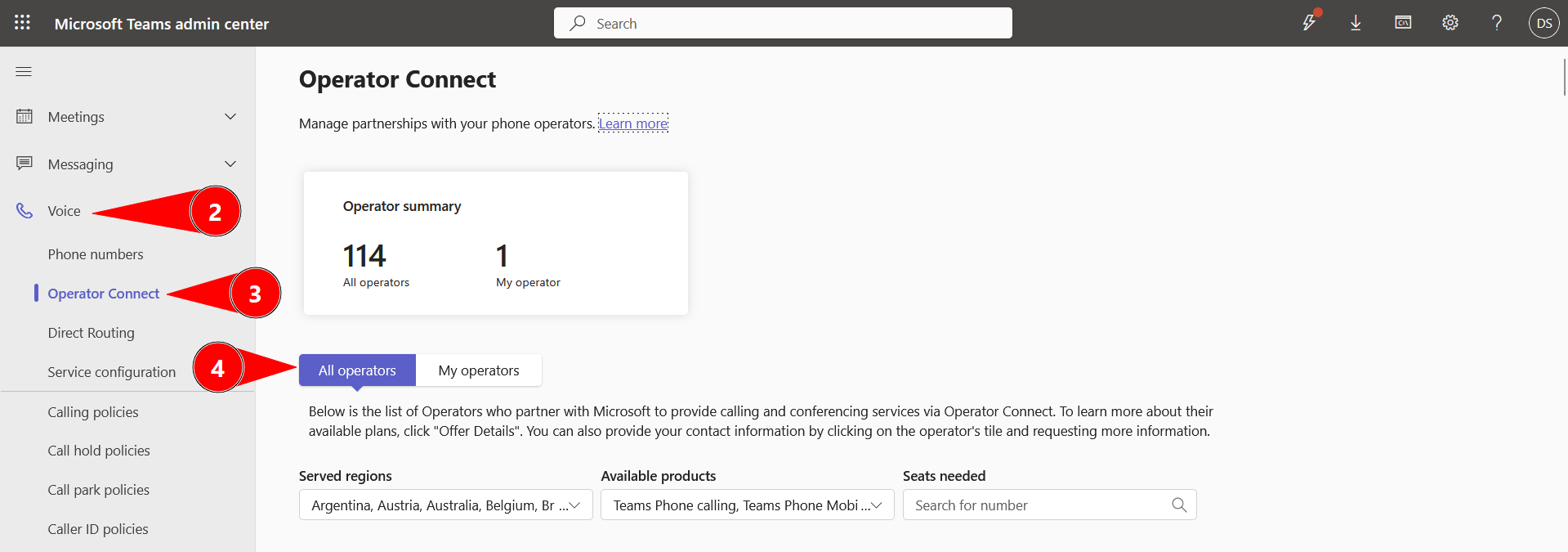
In the left-hand navigation menu, go to Voice.
-
Select Operator Connect.
-
Open the All operators tab.
-
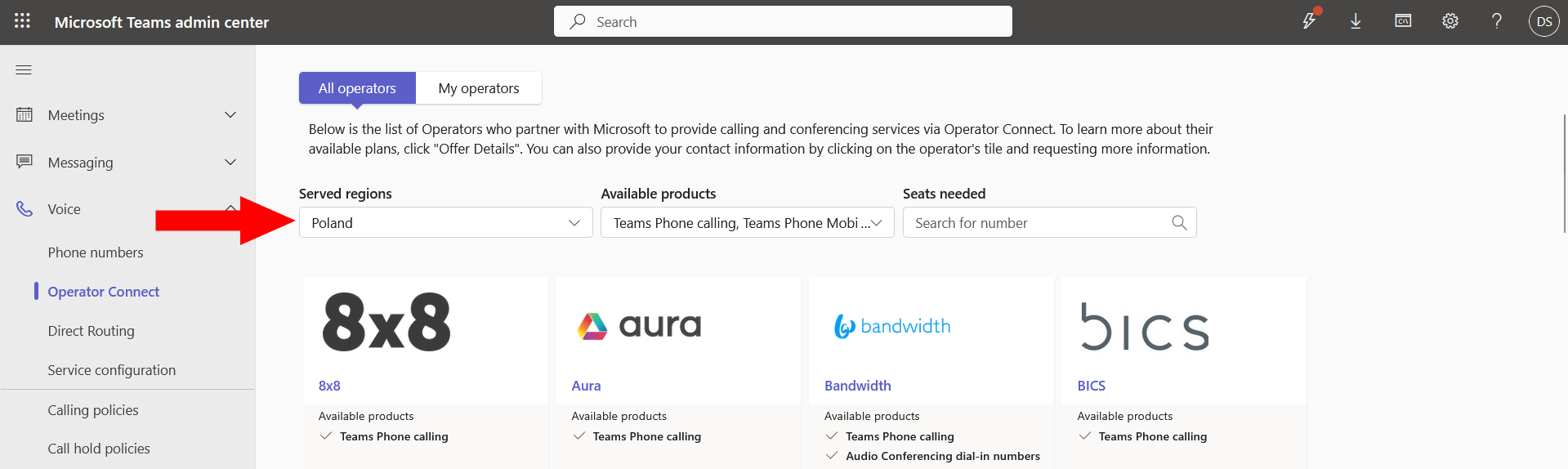
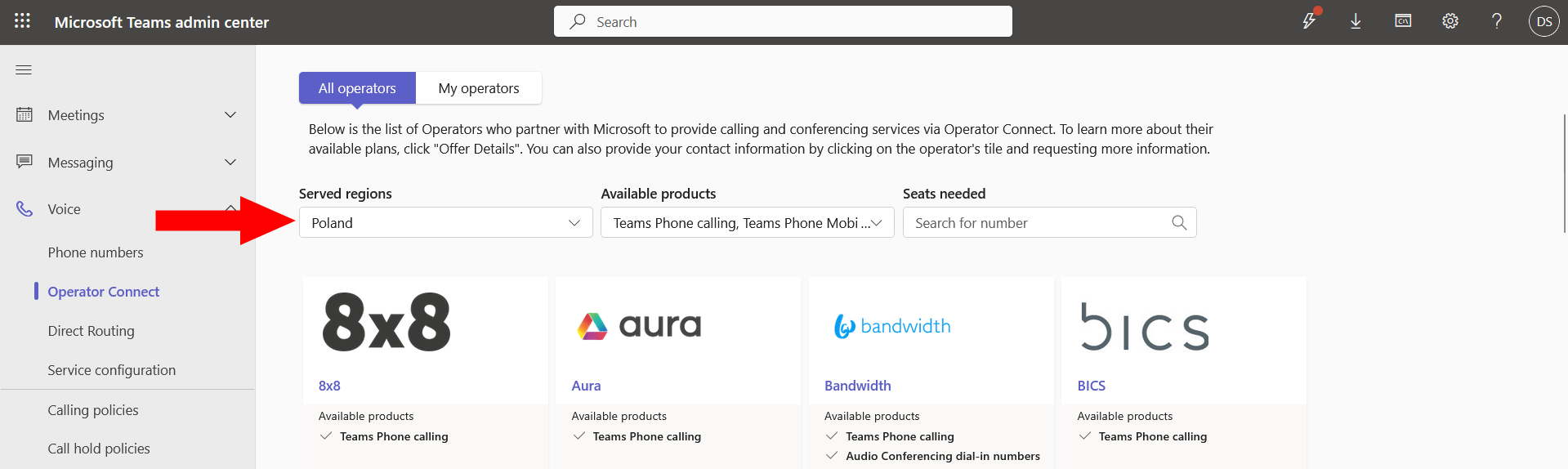
Filter the list to display operators available in Poland.
-
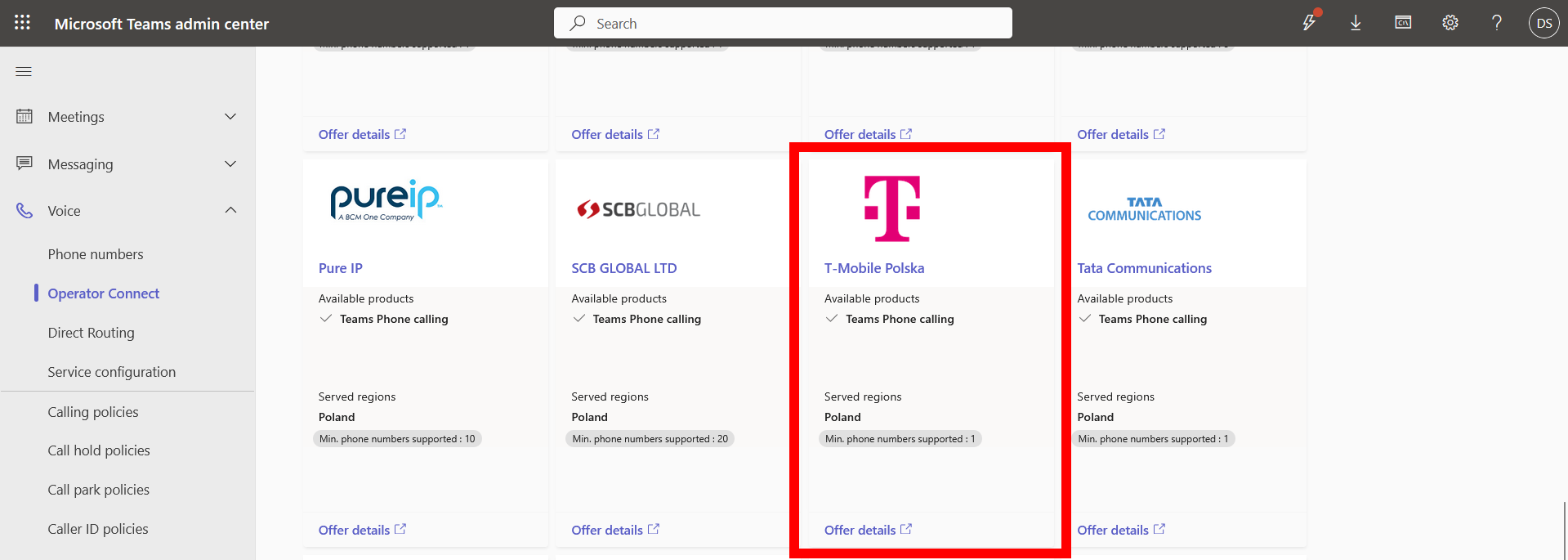
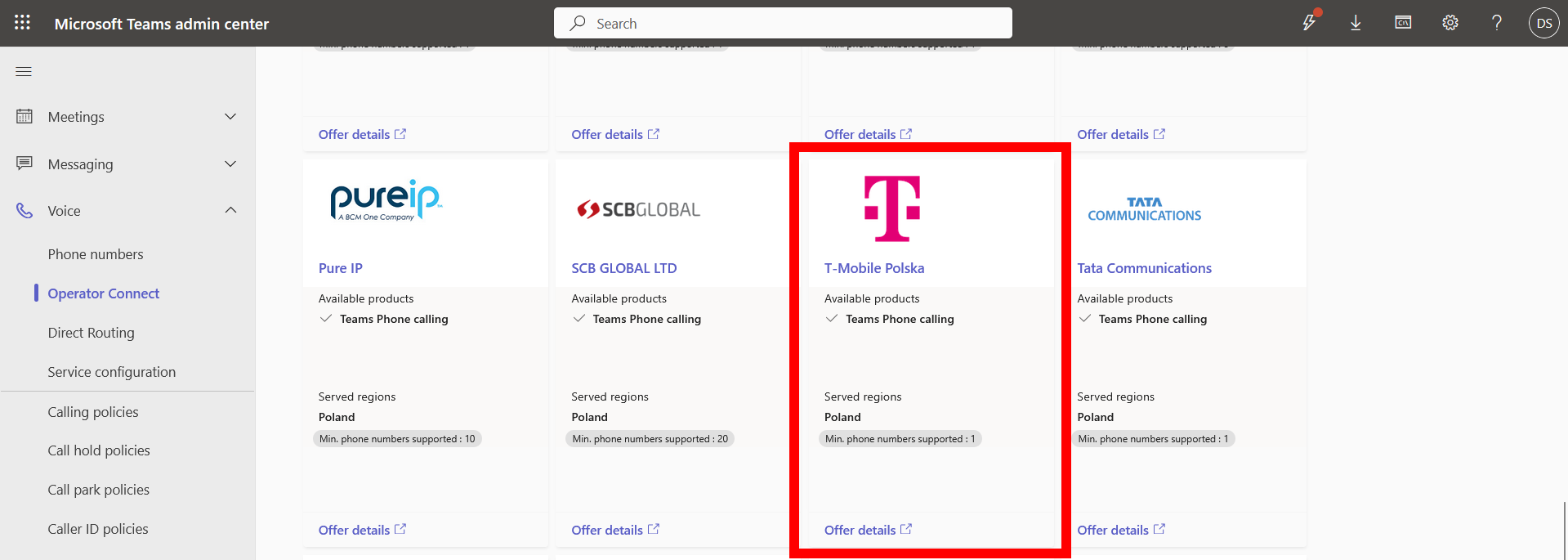
Find T-Mobile Polska on the list and select it.
-
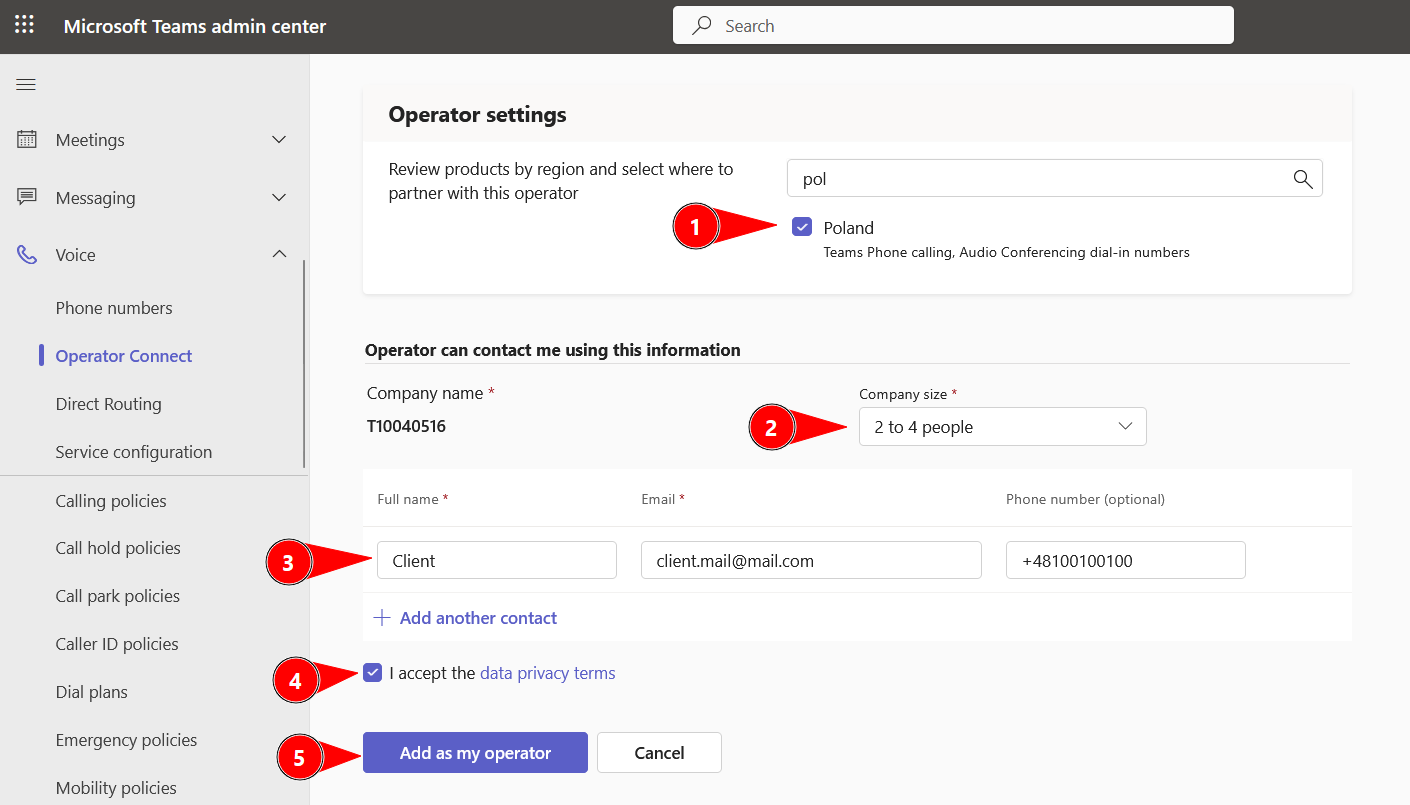
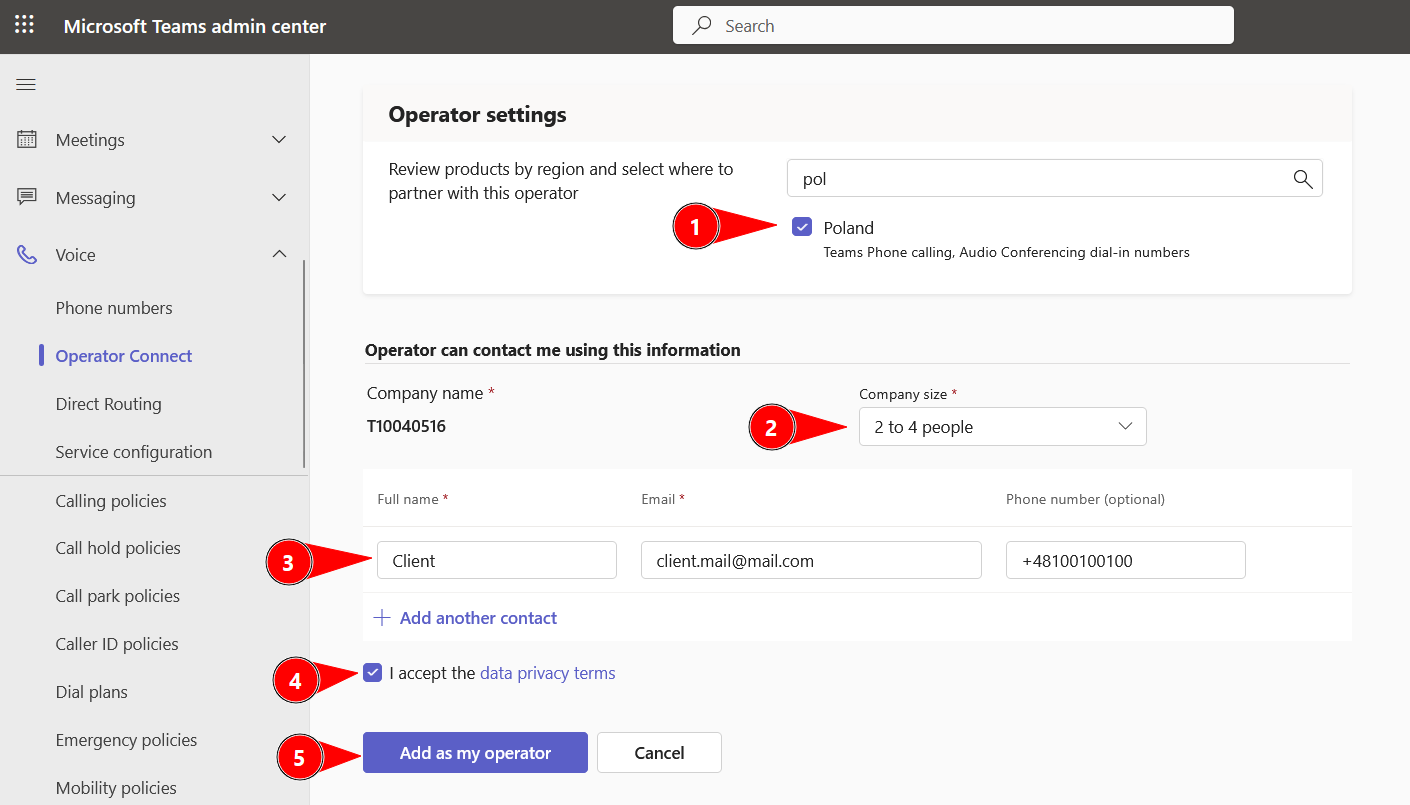
Complete the operator settings and contact details:
- Select the country or region where the service will be provided.
- Select your company size.
- Review and complete the contact details that will be shared with T-Mobile Polska.
- Accept the data transfer and privacy notice.
- Select Add as my operator to submit the information and enable T-Mobile Polska as your Operator Connect provider.
The contact details provided in the form will be used by T-Mobile Polska to contact your organization about the Operator Connect service.
After the form has been submitted, you will receive an email confirming that your request has been accepted. A T-Mobile representative will then contact the person whose details were provided in the form.
Contact from T-Mobile
After T-Mobile Polska has been added as your operator in the Microsoft Teams admin center, a T-Mobile sales representative will contact the person identified in the form.
During the contact, the representative will present the available offer and agree with you on the contract and service configuration. The main arrangements include:
- Telephone numbers – allocation of new telephone numbers from the T-Mobile number range, transfer of numbers from another T-Mobile service, or porting of numbers from another operator.
- Calling tariff – selection of the tariff that will apply to telephone calls.
- Service activation date – agreement on the expected activation date. The date depends on the number of telephone numbers and whether they are being ported from another operator.
Service activation and configuration
The connection between T-Mobile Polska and your Microsoft 365 organization is activated as part of the service implementation process. Once the telephone numbers have been made available by the operator, your administrator must assign them to the appropriate user accounts in the Microsoft Teams admin center.
Instructions for assigning telephone numbers are available on the following page:
Assigning telephone numbers to Microsoft Teams user accounts
Users must have the required Teams Phone licenses before telephone numbers can be assigned to them. Depending on the configuration of your organization, additional settings, such as emergency addresses and calling policies, may also be required.
How to find your Microsoft Entra tenant ID
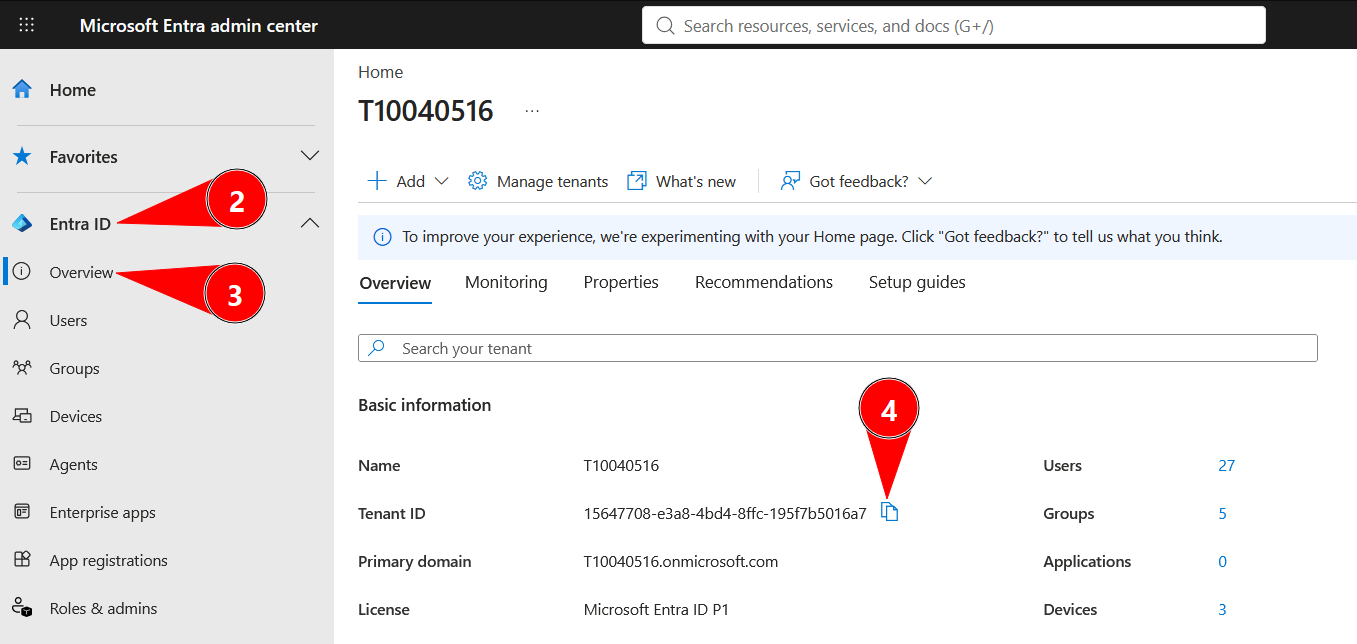
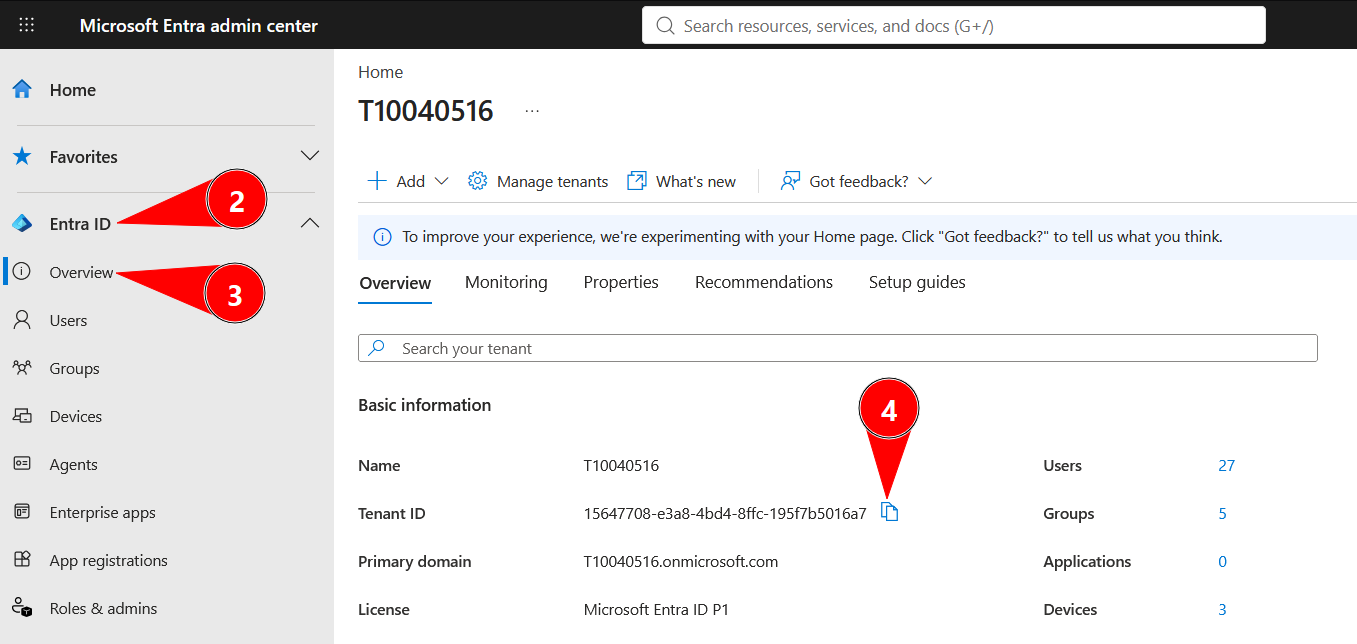
The Tenant ID, also known as the Directory ID, uniquely identifies your organization's Microsoft Entra tenant. You may need this identifier when configuring the Microsoft Teams Operator Connect service. You can find your Tenant ID using the Microsoft Entra admin center.
Microsoft Entra admin center
-
Sign in to the Microsoft Entra admin center using an account with at least the Global Reader role.
-
In the left-hand navigation menu, select Entra ID.
-
Select Overview, and then select Properties.
-
Scroll to the Tenant ID section. You can copy the Tenant ID and use it when configuring the Microsoft Teams Operator Connect service.
How to assign an Operator Connect phone number to a Microsoft Teams user
This guide explains how to assign an Operator Connect phone number to a Microsoft Teams user. The entire process is completed in the Microsoft Teams admin center.
Before you begin
Make sure that:
- the phone number has been provided by the operator and is available in your organization,
- the user has the required Microsoft Teams and Teams Phone licenses,
- the phone number and the user's usage location are in the same country or region,
- you have the Teams Administrator, Teams Communications Administrator, or Teams Telephony Administrator role.
Assign the phone number
-
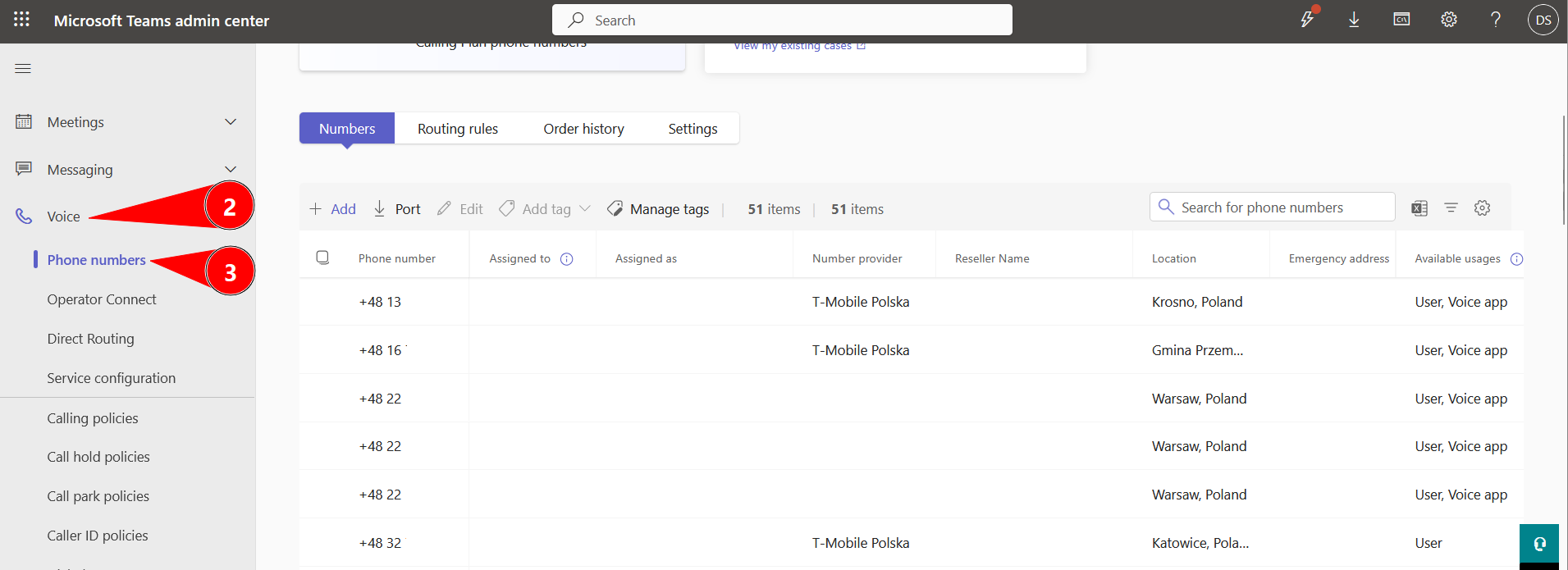
Open the Microsoft Teams admin center and sign in using an account with the required administrator role:
-
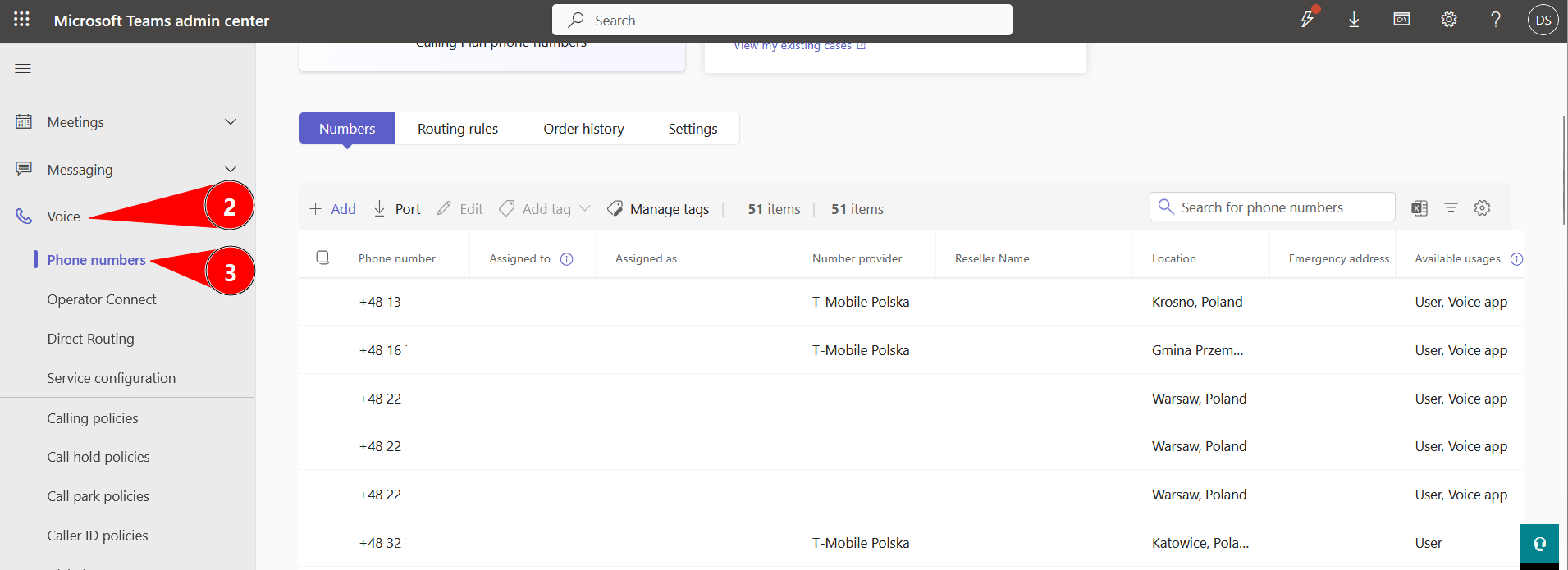
In the left-hand navigation menu, select Voice.
-
Select Phone numbers.
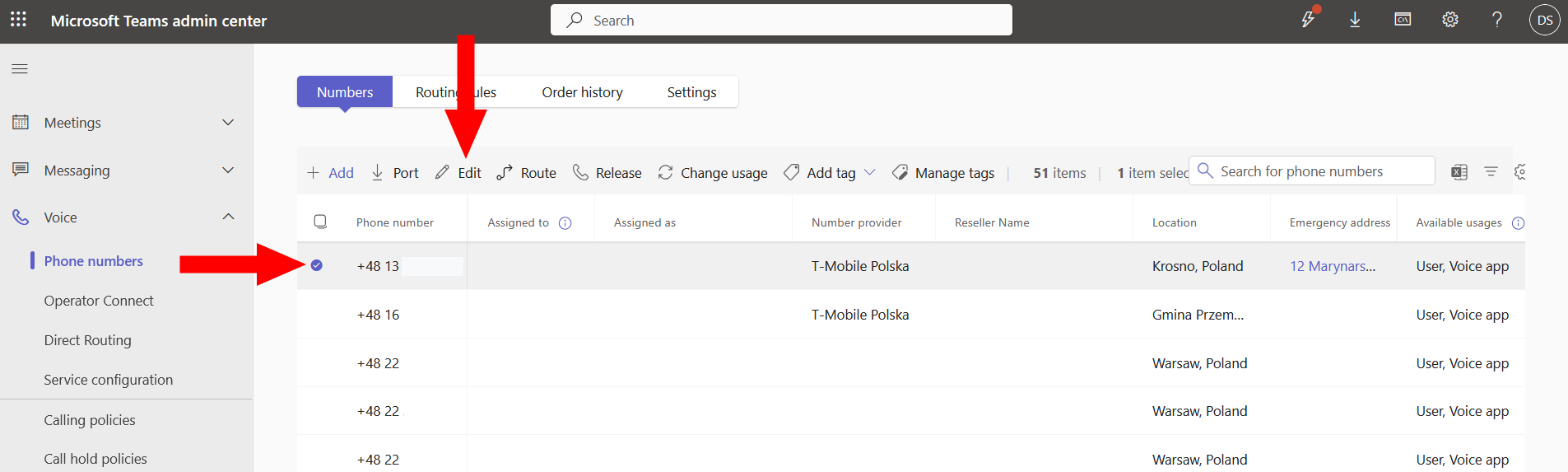
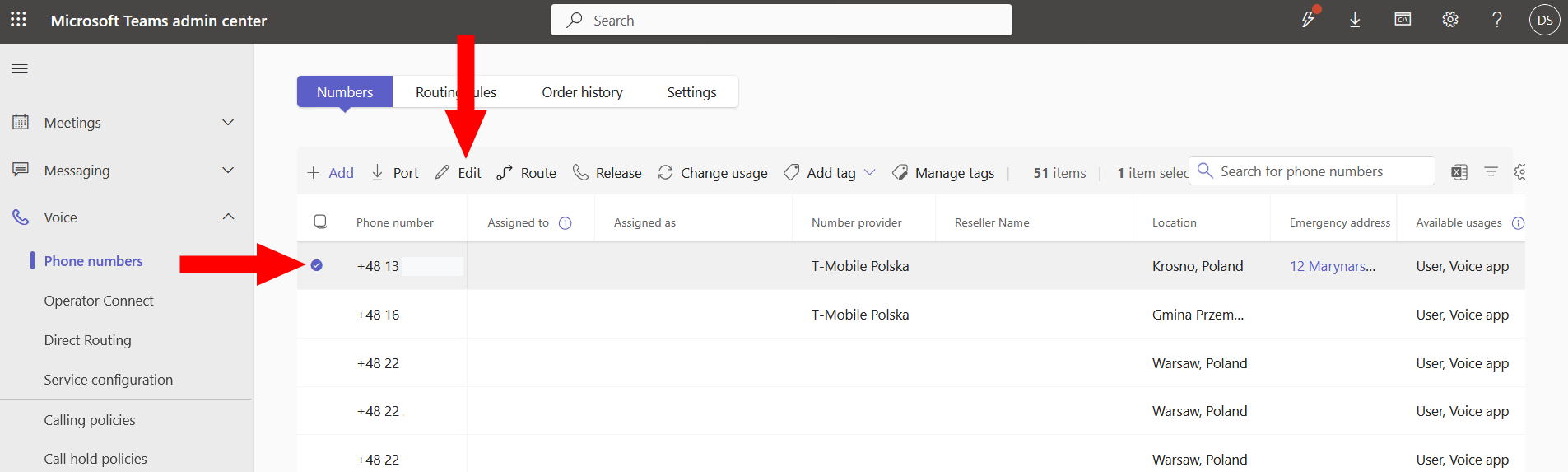
- On the Phone numbers page, select an unassigned phone number from the list, and then select Edit.
-
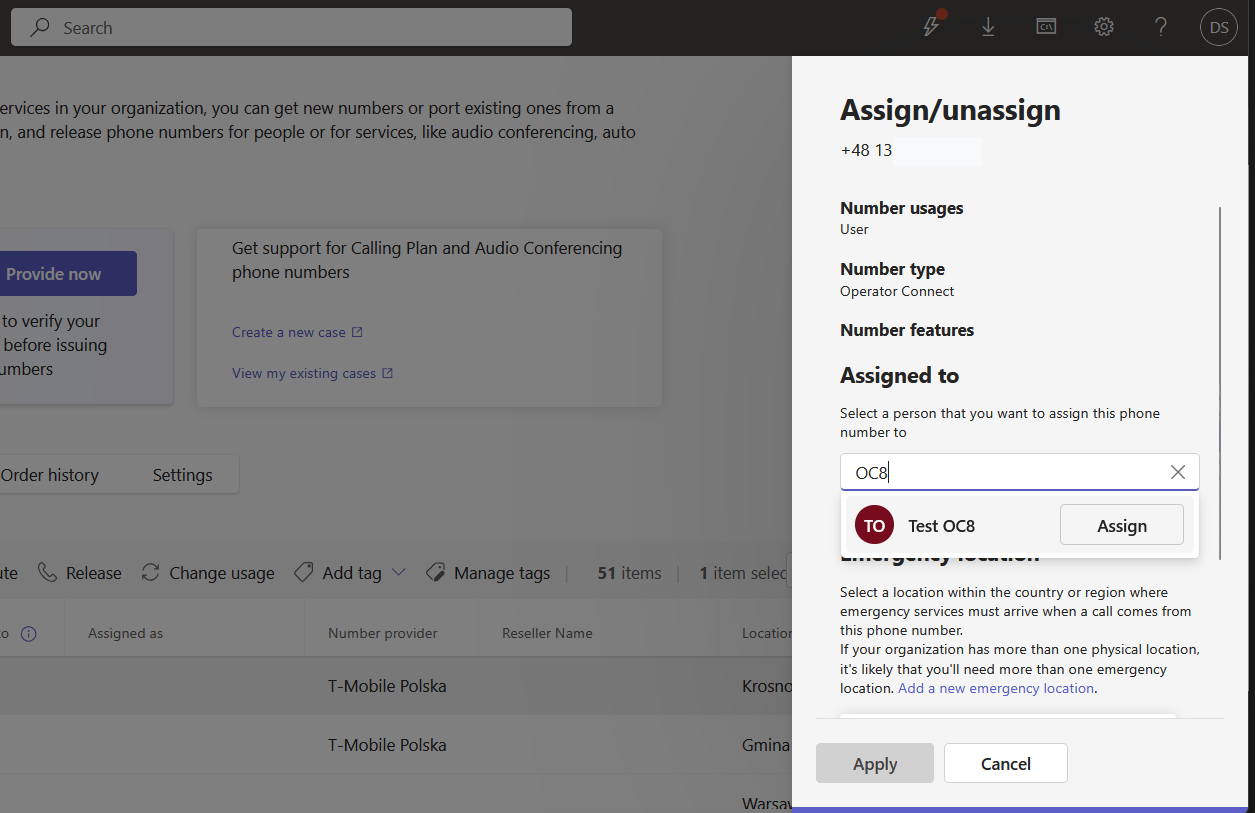
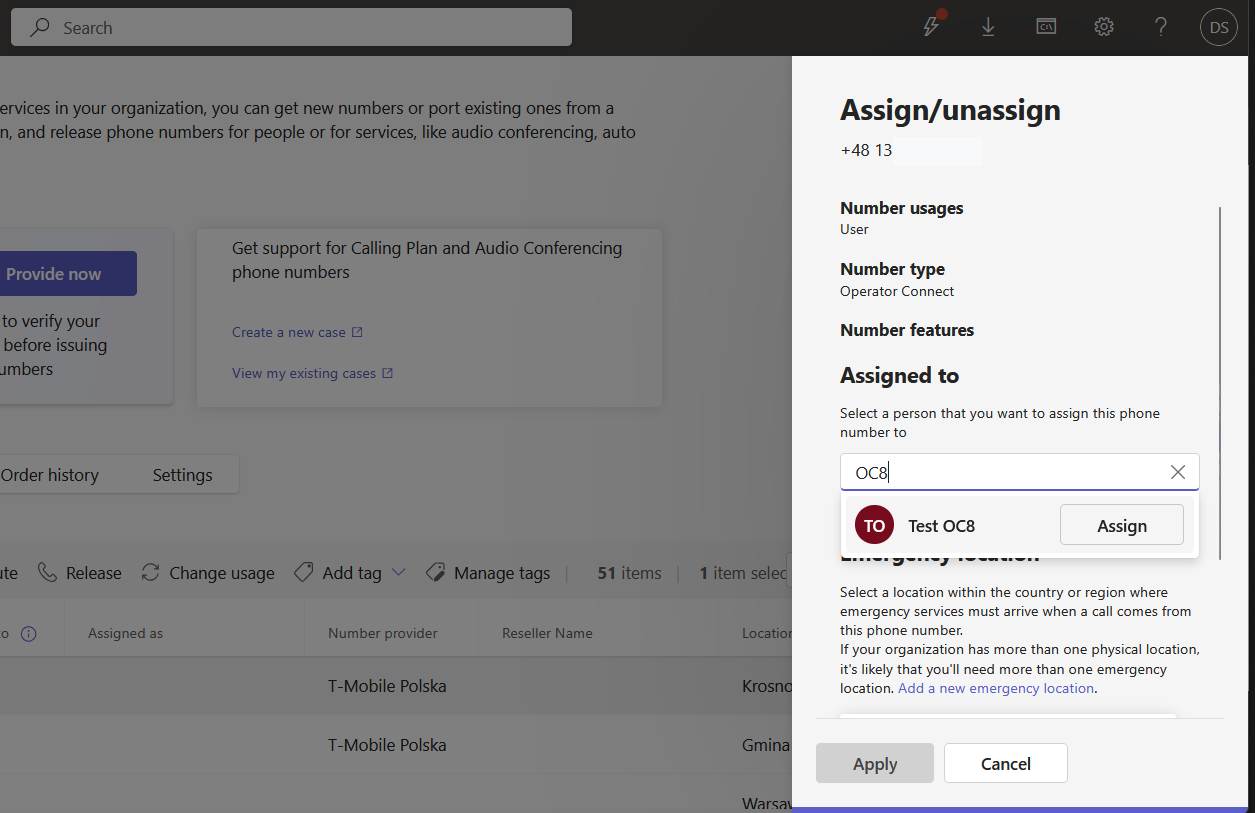
In the Edit pane, under Assigned to, search for the user by display name or username, and then select Assign.
-
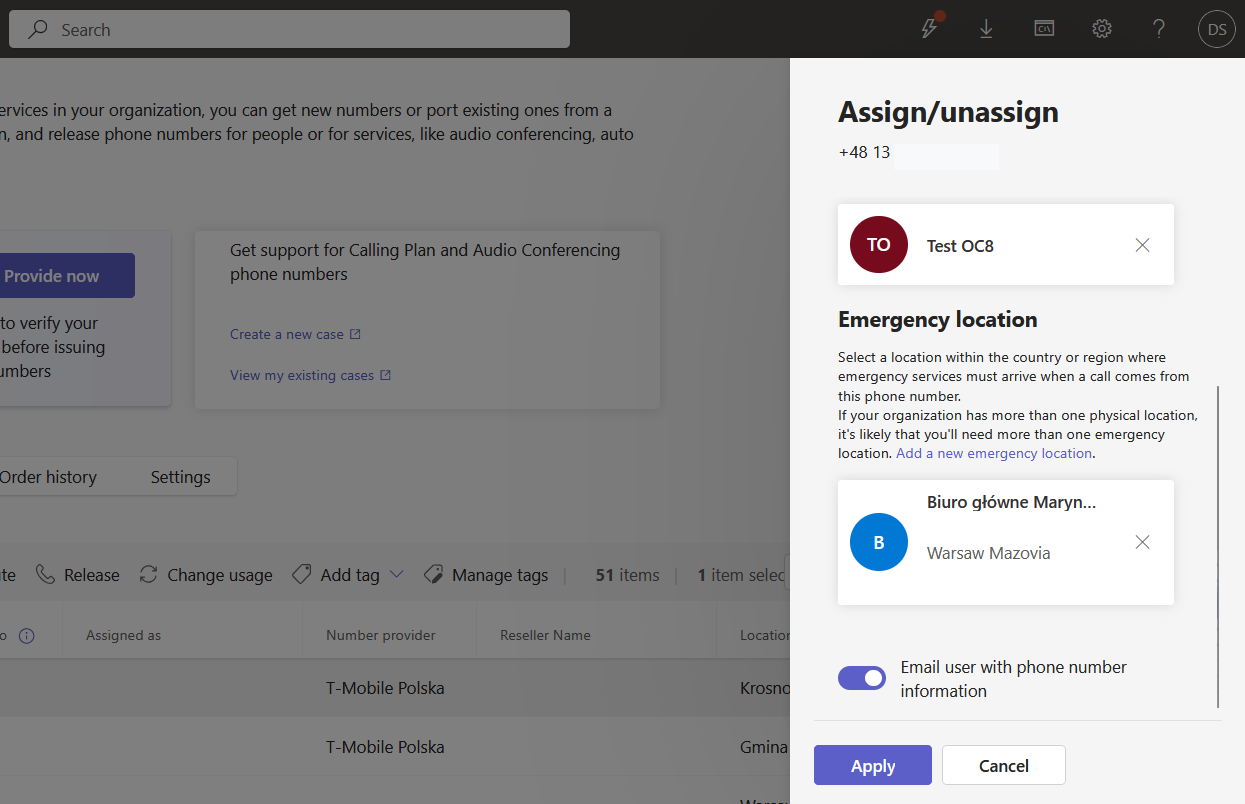
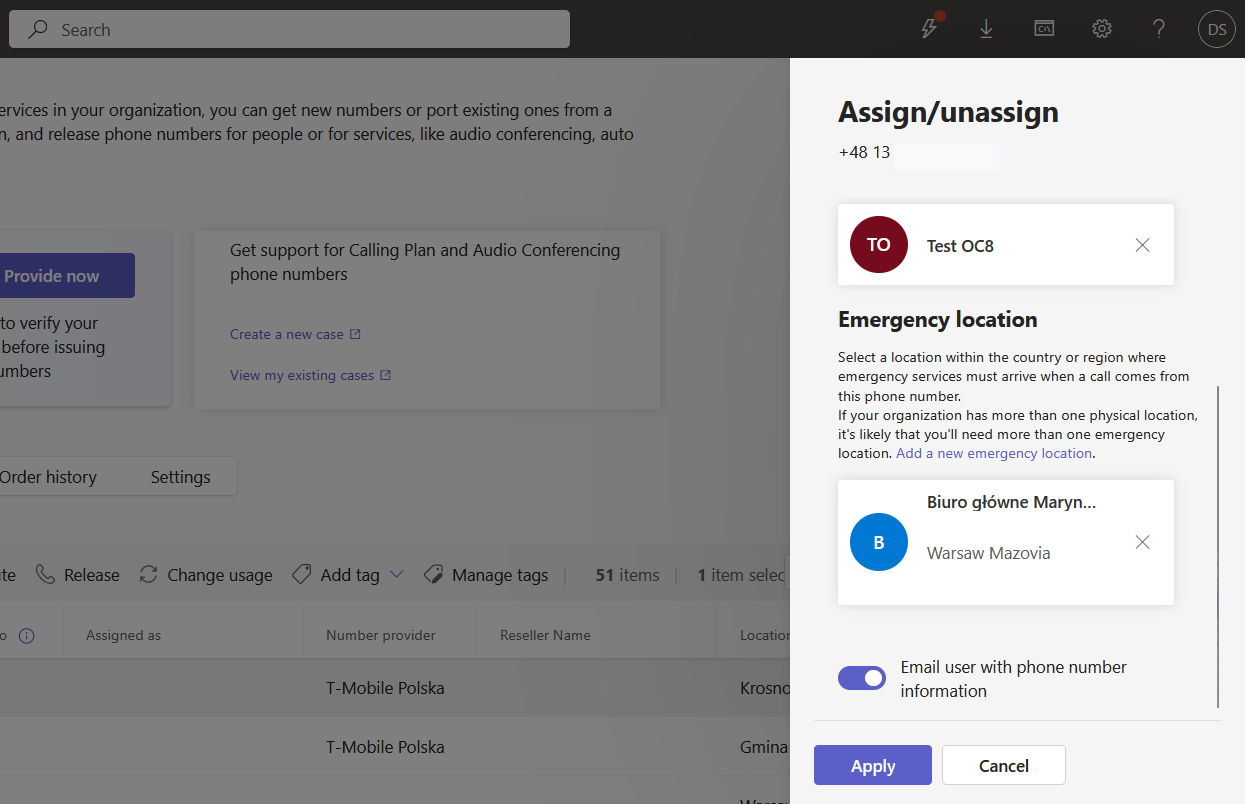
If the Emergency location option is available, search for and select the location associated with the phone number. For Operator Connect numbers, the option to assign or change an emergency location depends on the operator.
-
Use the Email user with telephone number information option to specify whether Microsoft Teams should send the user an email containing information about the assigned phone number. This option is enabled by default.
-
Select Apply.
The phone number is now assigned to the selected Microsoft Teams user. It may take some time for the change to become available across Microsoft 365 and Microsoft Teams.