# Adding a New Domain to the Microsoft 365 Admin Center
T-Mobile has assigned your company a domain in the following format. You can find your individual number in the Order section of your contract:
[](https://bookstack.uc.t-mobile.pl/uploads/images/gallery/2024-02/image.png)
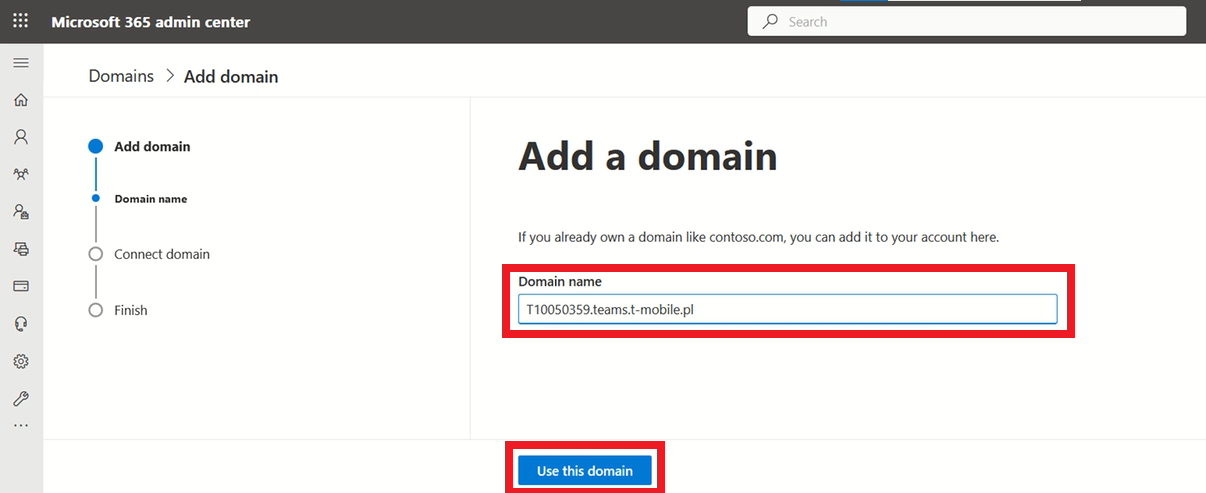
This domain will be used for voice communication in MS Teams. You need to add this domain to the **Admin Center** panel of your organization on the **Microsoft 365 portal**.**1.**Once you have logged in, go to: **Settings** > **Domains** > **Add domain**. Enter the domain assigned to your company by T-Mobile and click **Use this domain**.
[](https://bookstack.uc.t-mobile.pl/uploads/images/gallery/2023-11/Bn6image.png)
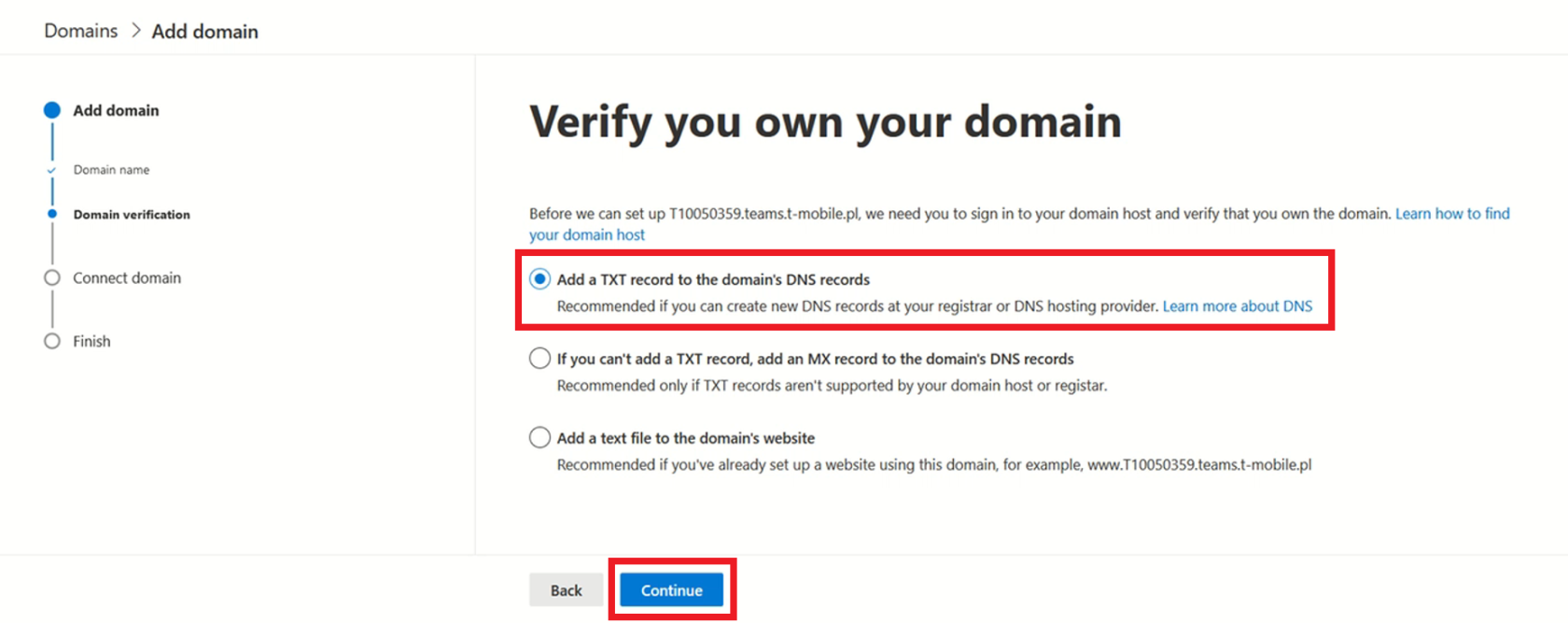
**2.**Verify the domain, by selecting: **Add a TXT record to the domain's DNS records**.
[](https://bookstack.uc.t-mobile.pl/uploads/images/gallery/2023-11/GXMimage.png)
Click **Continue** to generate a **TXT record** to verify domain ownership.**3.** The DNS record information will be displayed.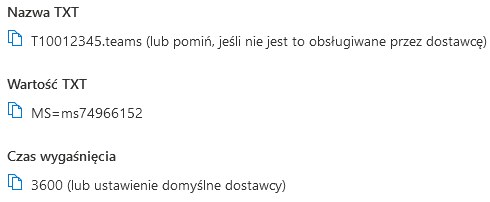
Make sure to leave the **Microsoft Admin Panel** open in your browser and email the following address: **uc@t-mobile.pl**. For the subject line, use "Autoryzacja domeny". In the body of the email, type the value of the **TXT record**, for example, "**MS=ms74966152**".
Once you receive a confirmation message from T-Mobile that the record has been created on the DNS servers, you can move on to the next step.
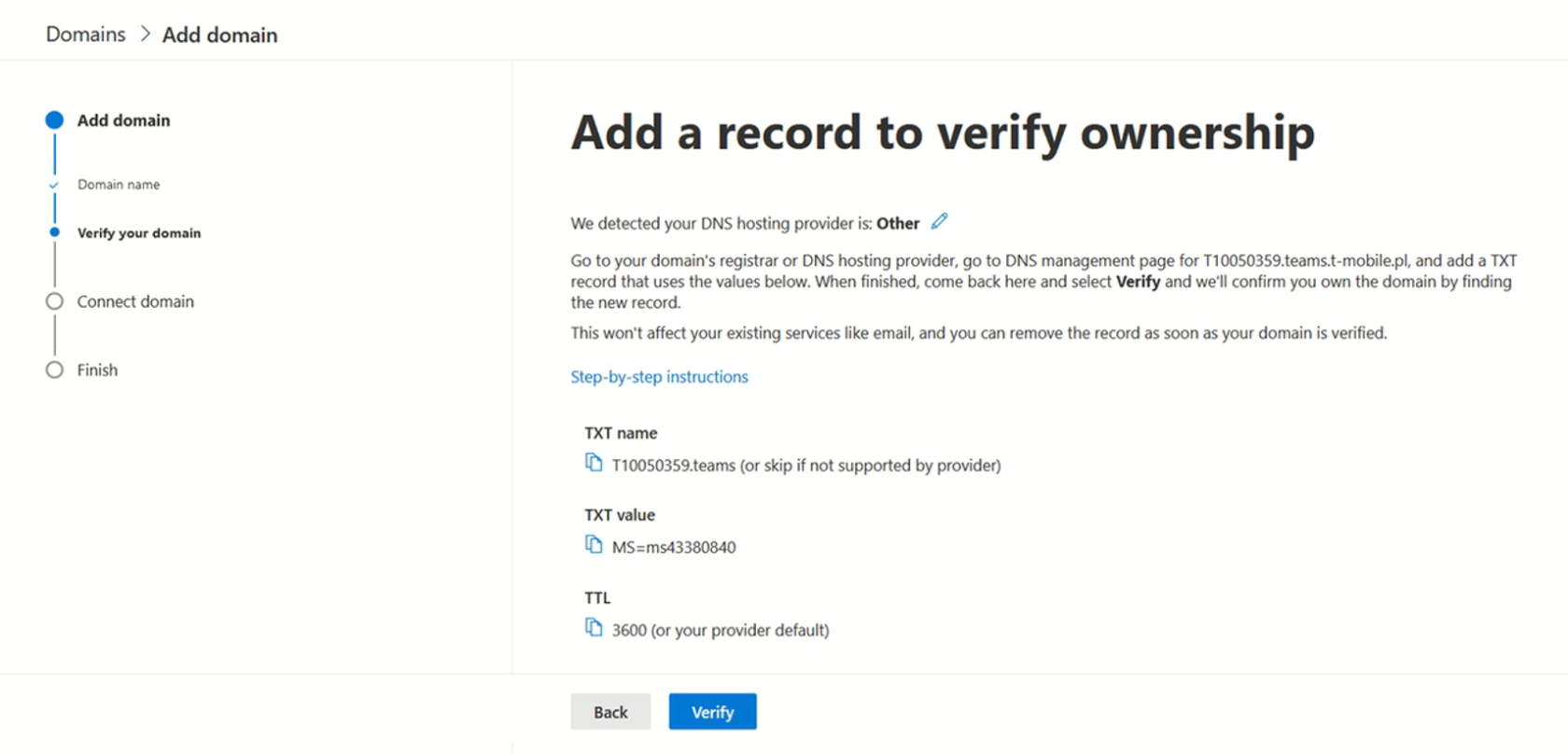
** 4. **Now, return to the **Microsoft Admin Panel** page and verify the domain by clicking the **Verify** button.
[](https://bookstack.uc.t-mobile.pl/uploads/images/gallery/2023-11/xyFimage.png)
If the following message appears after verification, wait about 10 minutes and try again. If the verification fails again, wait an hour and try again.[](https://bookstack.uc.t-mobile.pl/uploads/images/gallery/2023-11/3ddaa319-ca04-4191-9211-14f536b98e03.png)**5.** After verifying the **TXT record**, you will be asked "**How do you want to connect your domain?".** Select **More options.**
[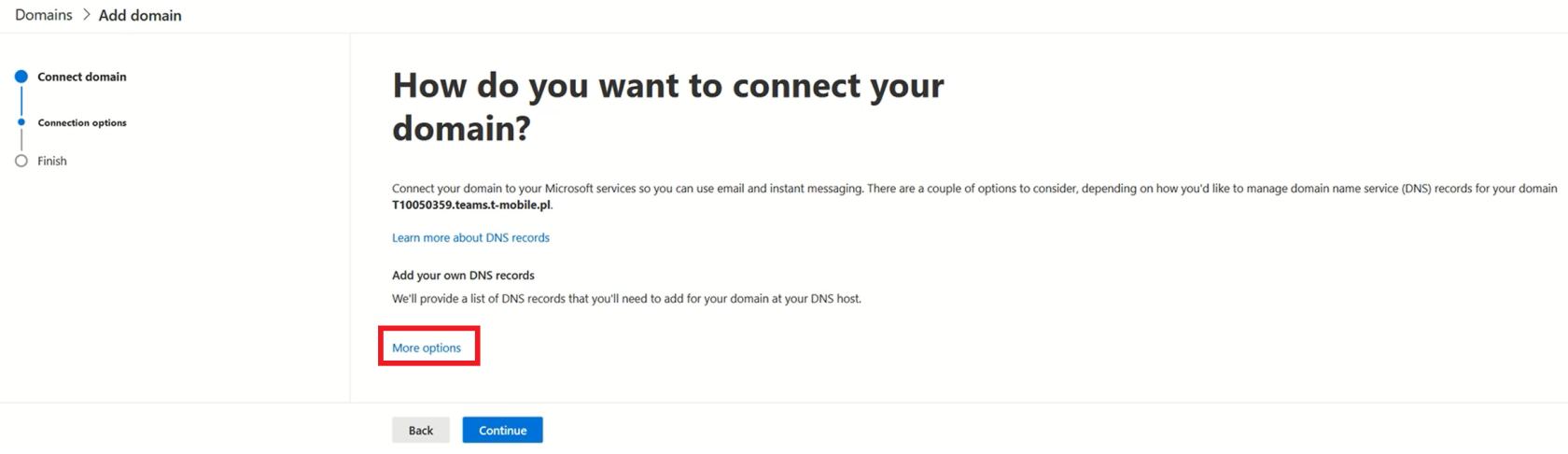](https://bookstack.uc.t-mobile.pl/uploads/images/gallery/2023-11/cUrimage.png)
**6.** Then, select **Skip and do this later (not recommended)** and then click **Continue**.
[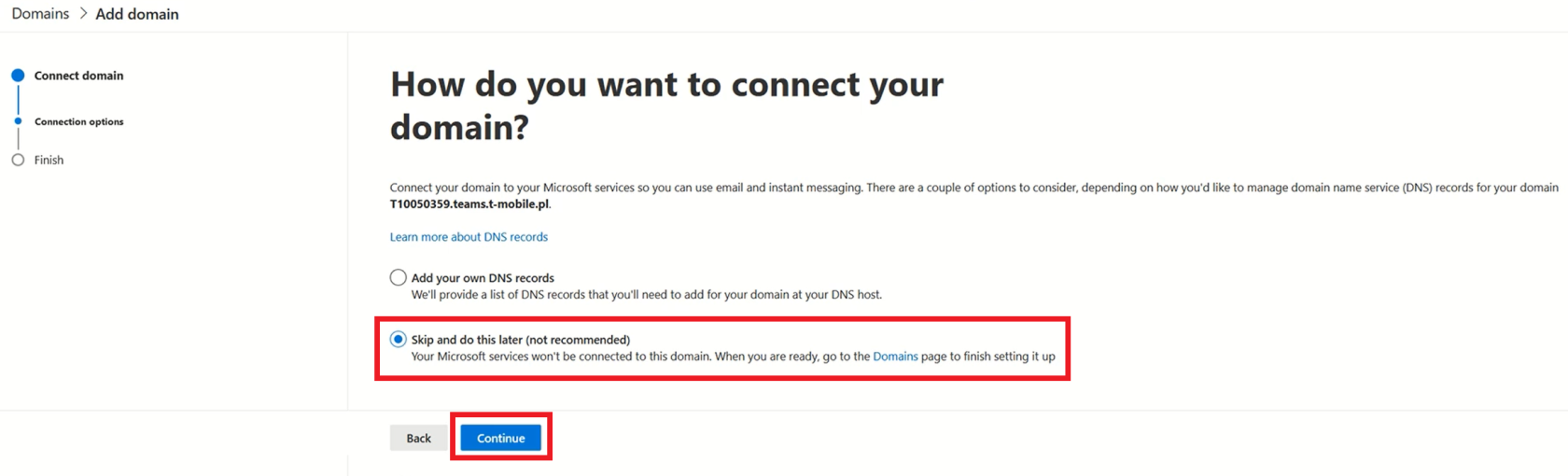](https://bookstack.uc.t-mobile.pl/uploads/images/gallery/2023-11/WC2image.png)
**7. **When the domain setup is complete, click **Done.**
[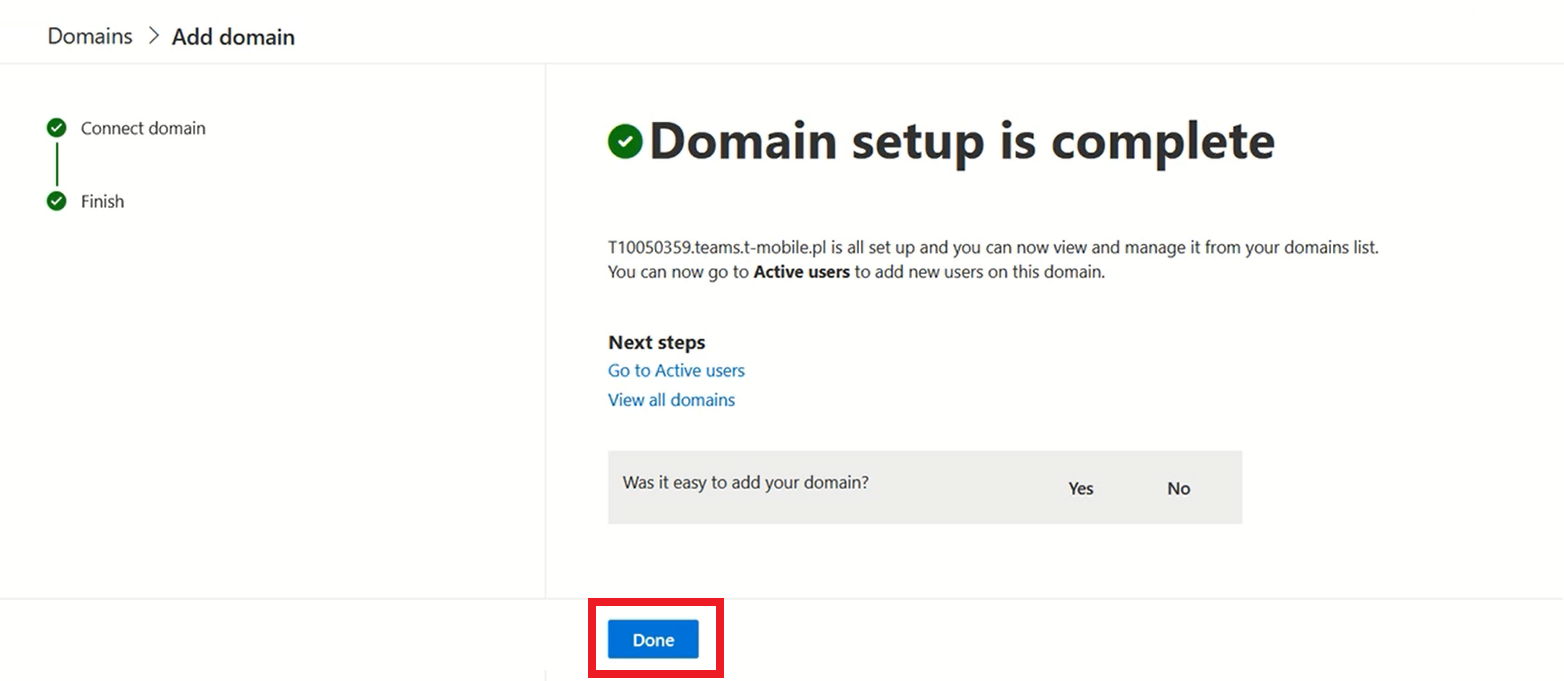](https://bookstack.uc.t-mobile.pl/uploads/images/gallery/2023-11/5vgimage.png)
**8. **Once the domain setup is complete, go to **Settings** > **Domains.** The correct value in the **Status** column is "**No service selected**". This means that the domain has been configured correctly.
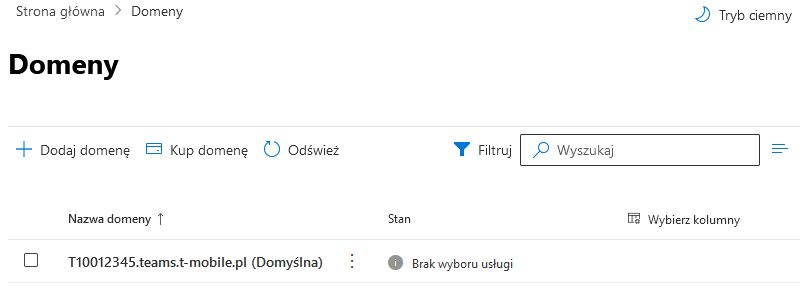Now you can proceed to the next instruction.